

Write a first draft from a brief
Turn a ready brief into a first draft with a featured image, then edit it into something your team is happy to publish.
On this page
The short version
 The short version
- On a ready brief, press Generate from brief under Use this brief.
- The first draft is built from the brief's outline, answers and sources. Edit it like any document.
- Ask for a new version after editing and it arrives as a suggestion. Your edits are kept until you choose.
A brief says what to make. Sometimes the quickest way to start making it is to have a first draft in front of you. Mole Marketer can write one from any ready brief, using the brief's outline, your team's answers and the same sources the brief cites, then leave it for you to finish. For the Huila podcast brief, that first draft is a pitch email to hosts, Ines's talking points and a one-sheet, with gaps in square brackets for the parts only Priya can fill in.
A first draft is a starting point for your team, not finished work. Mole Marketer does not publish or send it anywhere.
Before you start
The brief must be marked ready. On a draft brief, Use this brief offers only Mark as ready. Answer its questions, press Update brief if you want the answers folded in, then press it. Answer your team's questions and update a brief covers both.
Generate the draft
On a ready brief, scroll to Use this brief and press Generate from brief: "Create a first draft to review and edit in Mole Marketer." Each draft uses some of the property's monthly AI allowance. You will see "Generated draft started." and the button turns to Generating draft while the draft is written. Leave the page if you like; the draft appears on the brief when it is done.
The draft goes through the same checks as a brief. It can only cite the documents the brief cites, its numbers are checked against your sources and any that cannot be traced are taken out, and banned stock phrases are rewritten out. If a draft cannot pass, you will see "Draft generation failed" and any earlier draft is kept.
If a draft is already being written you will see "A generated draft is already running." A paused property cannot generate one until you resume it.
Read and edit it
The draft lands in Generated draft, under the brief's outline, which folds away to a line saying how many sections it has. It opens with its own title, then the draft itself in an editor with a toolbar for headings, lists and links. It saves as you type.
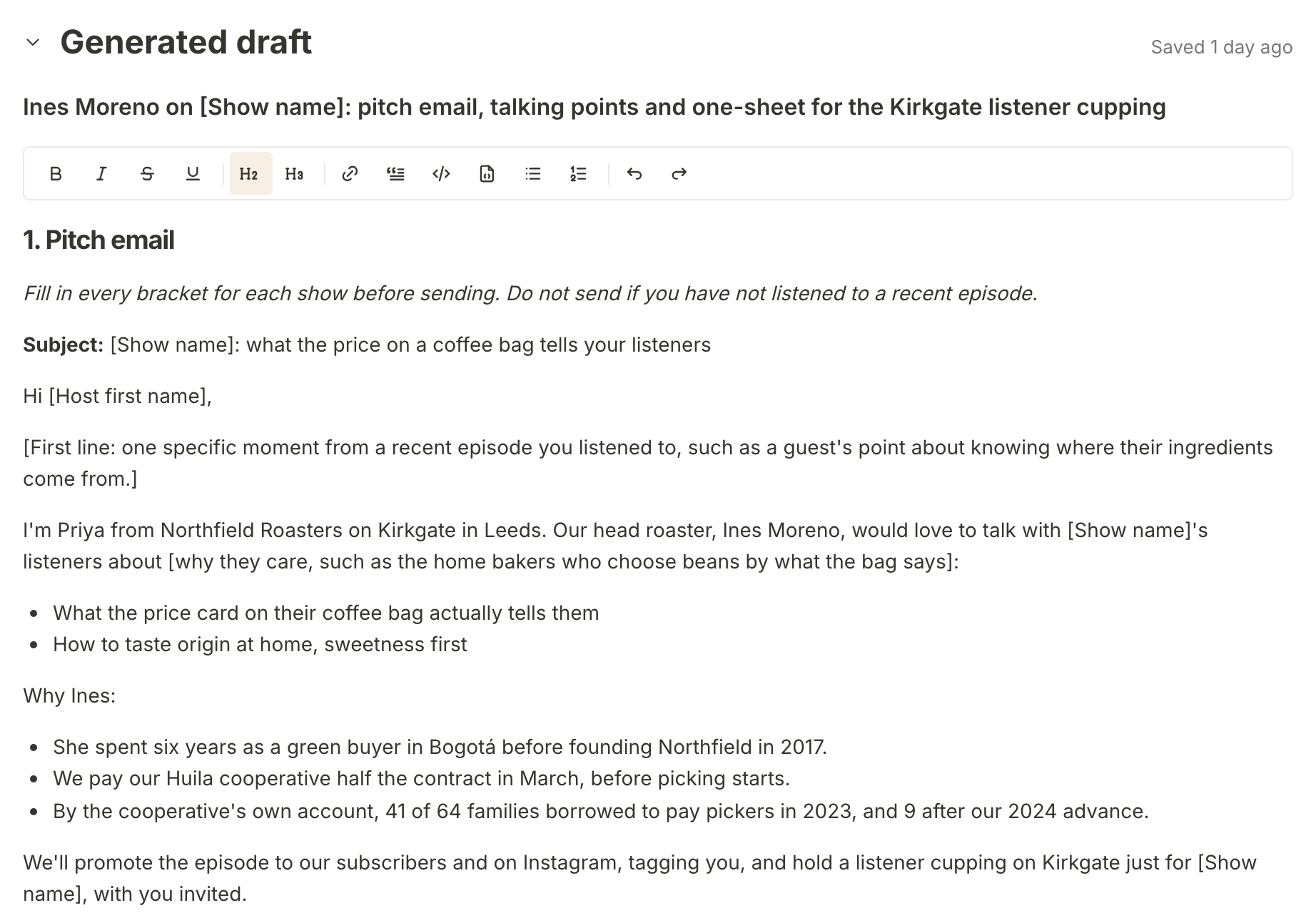
Read it as you would a freelancer's first draft. Fill in the bracketed gaps, cut what does not sound like you, and add what only your team knows. The note under it says "This is a first draft for you to review and edit. Your edits will not be overwritten." When you copy the brief or hand it off, the generated draft goes with it, after the outline. Hand a brief to whoever does the work covers the options.
Look after the featured image
Each brief gets a featured image, drawn once it has an outline, and the draft is written with it in mind. It sits above the outline, captioned with where it came from and its size, such as "Featured image · generated · 1536×1024".
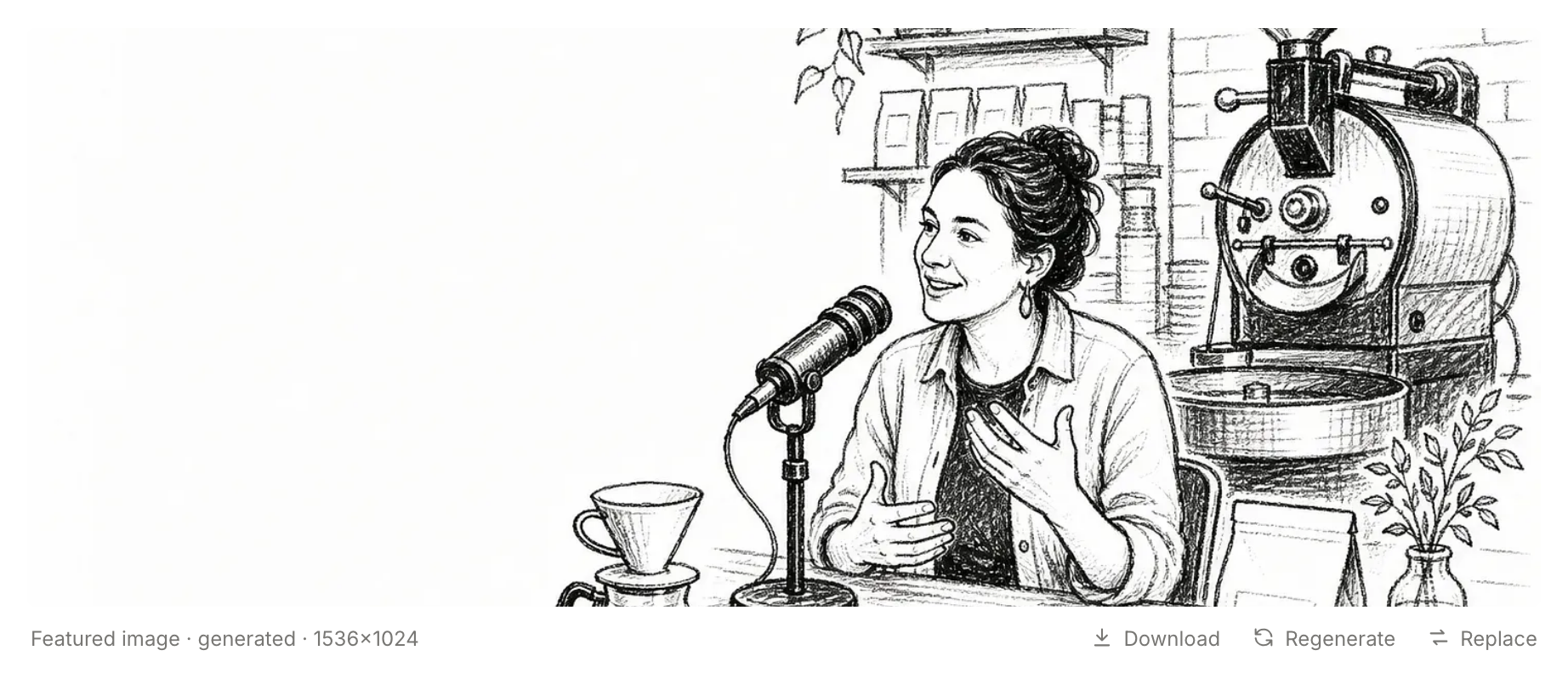
Three actions sit under it:
- Download saves the image.
- Regenerate draws a new one. When it is ready it replaces the current image, with no step to compare the two, so download the old one first if you might want it back.
- Replace lets you upload your own PNG, JPEG or WebP image instead. You will see "Featured image replaced."
If the month's AI allowance is used, the image says so, and you can still replace it with your own.
Use or ignore a regenerated draft
Once a draft exists, the button under Use this brief reads Regenerate. What happens next depends on whether anyone has edited the draft:
- Not edited: the new version simply replaces the old one.
- Edited by hand: your version stays put, and the new one waits underneath it as a suggestion.
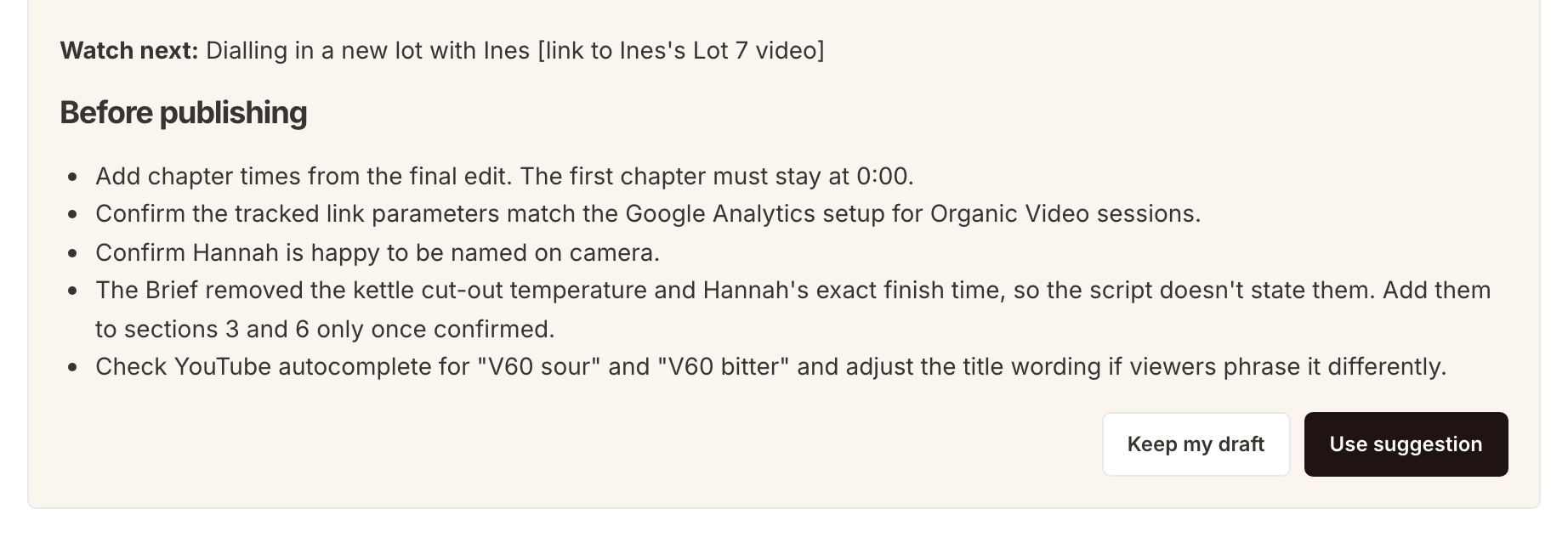
On the V60 tutorial brief, Tom added a line of his own to the draft before it was regenerated. So his draft is still there, with the note under it, and below that is Updated draft ready: "Review the suggested draft", showing the new version in full.
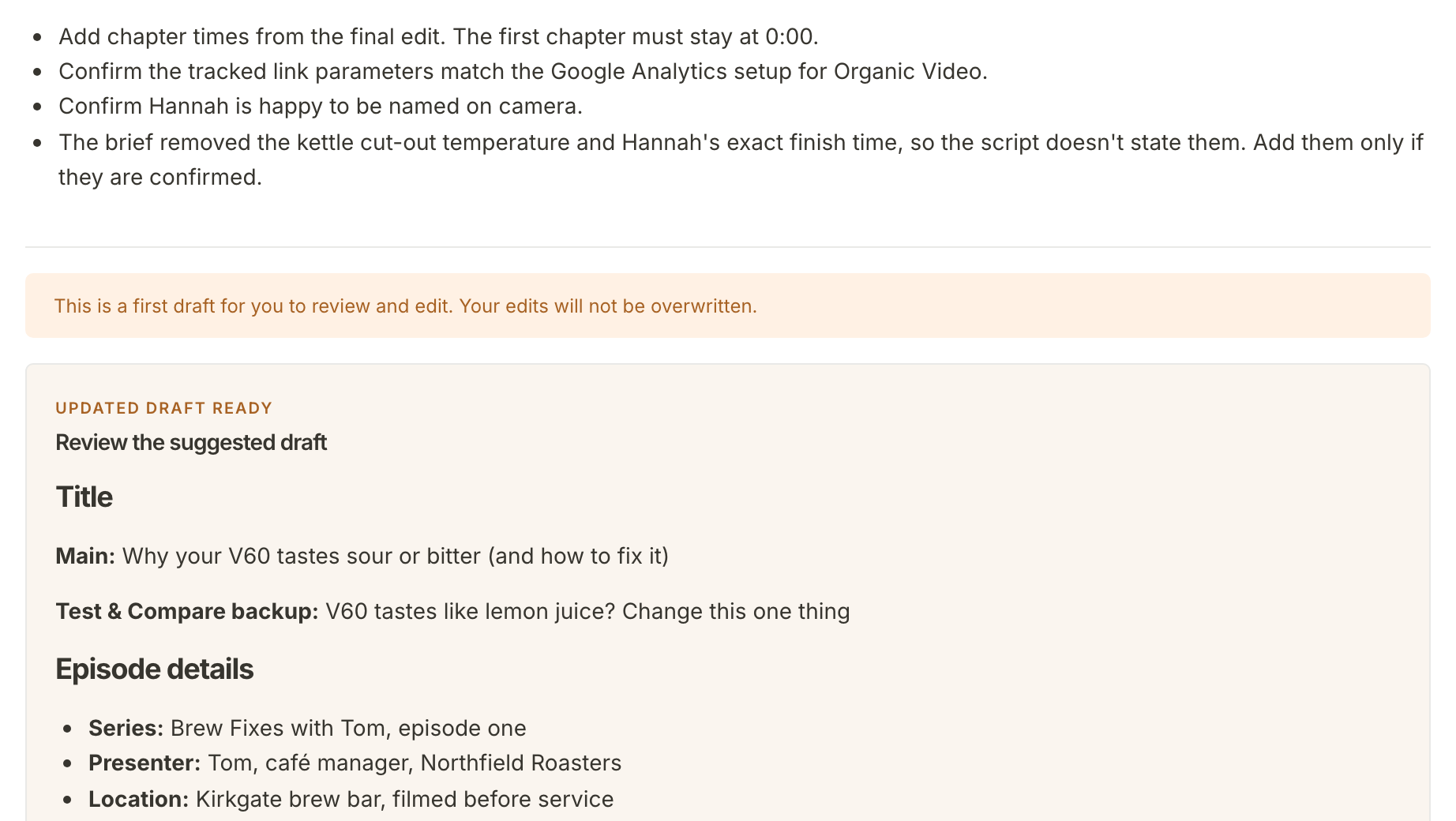
Read it, then choose at its foot. Use suggestion swaps the new version in ("Generated draft applied."). Keep my draft throws the suggestion away and keeps yours ("Your generated draft was kept.").
What happens next
When the draft reads well, hand the brief and its draft to whoever publishes it: see Hand a brief to whoever does the work. To take the same piece to another marketing channel, see Adapt a brief for another marketing channel.
Frequently asked questions
Is the draft ready to publish?
No. It is a first draft for your team to check, edit and finish. The bracketed gaps, any notes left for the reviewer and anything a first draft gets wrong are yours to sort out before it goes anywhere.
Can I go back to an earlier image?
No. Regenerate replaces the image and the old one is not kept. Use Download first if you might want it, and Replace to put it back.
Does it use the allowance?
Yes. Every draft and every image, including the first one drawn for a brief, uses some of the property's monthly AI allowance. Choose AI models and keep an eye on your allowance shows how much is left.