


Record the path customers take on your site
Click through your own site the way a customer would, and Mole Marketer writes down the steps for your funnel.
On this page
The short version
 The short version
- With the tracking tag on your site, press Set up by recording on the Analytics page.
- Walk your site from the first page to the thank-you page, adding clicks and checks as you go.
- Press Done and the funnel starts counting. Recording replaces the steps you had.
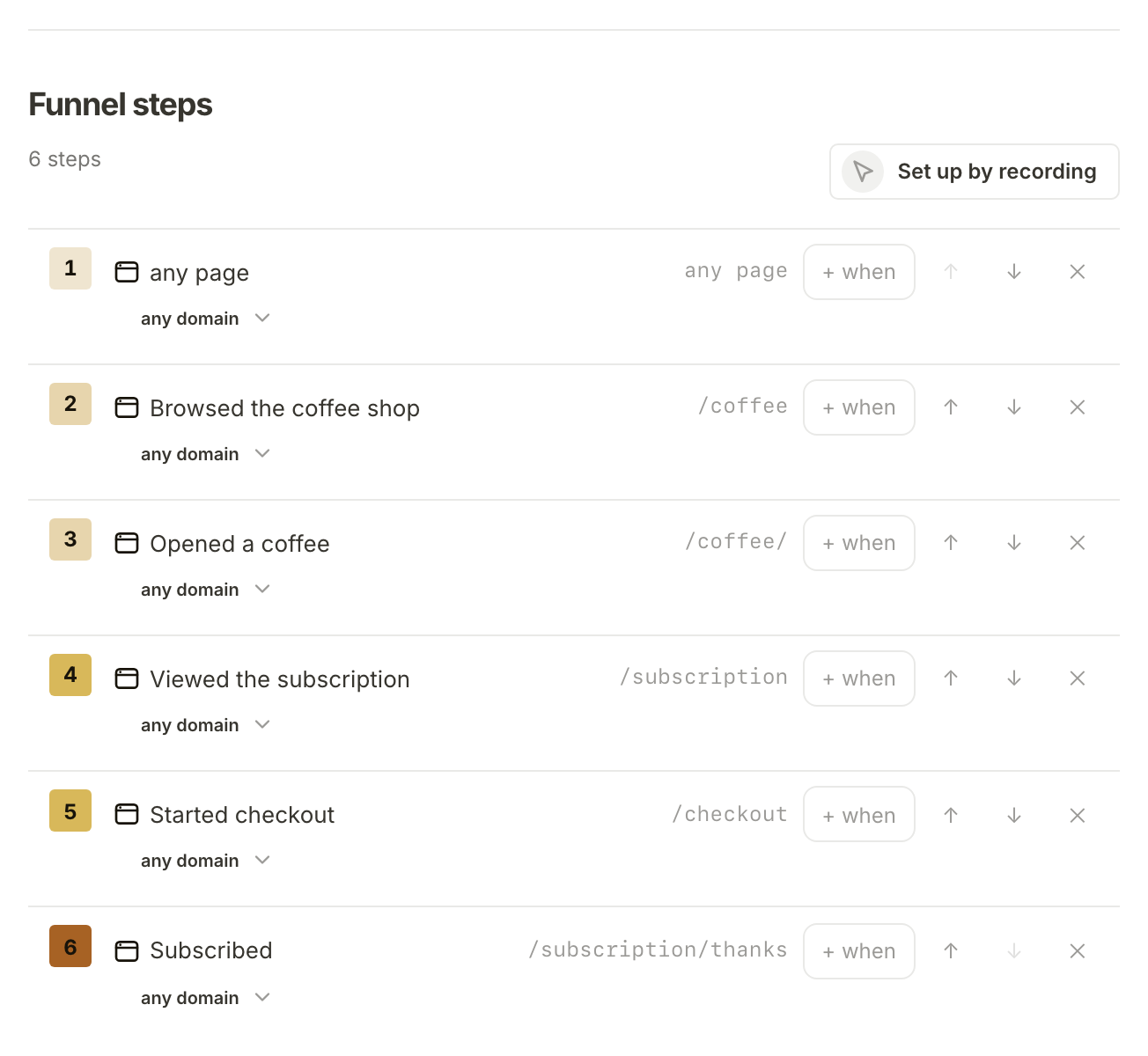
A funnel is the handful of steps a visitor takes on the way to buying, and Funnel Analytics counts how many people reach each one. You could type the steps in, but it is quicker to walk the path yourself while Mole Marketer writes it down. Northfield Roasters' funnel is the road to a coffee subscription: any page, the coffee shop, a coffee's own page, the subscription page, checkout and the thank-you page. Priya recorded it in one walk through the site.
Before you start
Only owners and admins see the Funnel steps section. The tracking tag must be on your site first, because the recorder runs through it: without the tag, your site opens without the recorder bar.
Start recording
Choose Analytics in the sidebar and scroll to Funnel steps, under Details at the foot of the page. Press Set up by recording. If the tag runs on more than one of your domains, choose Which site to record first.
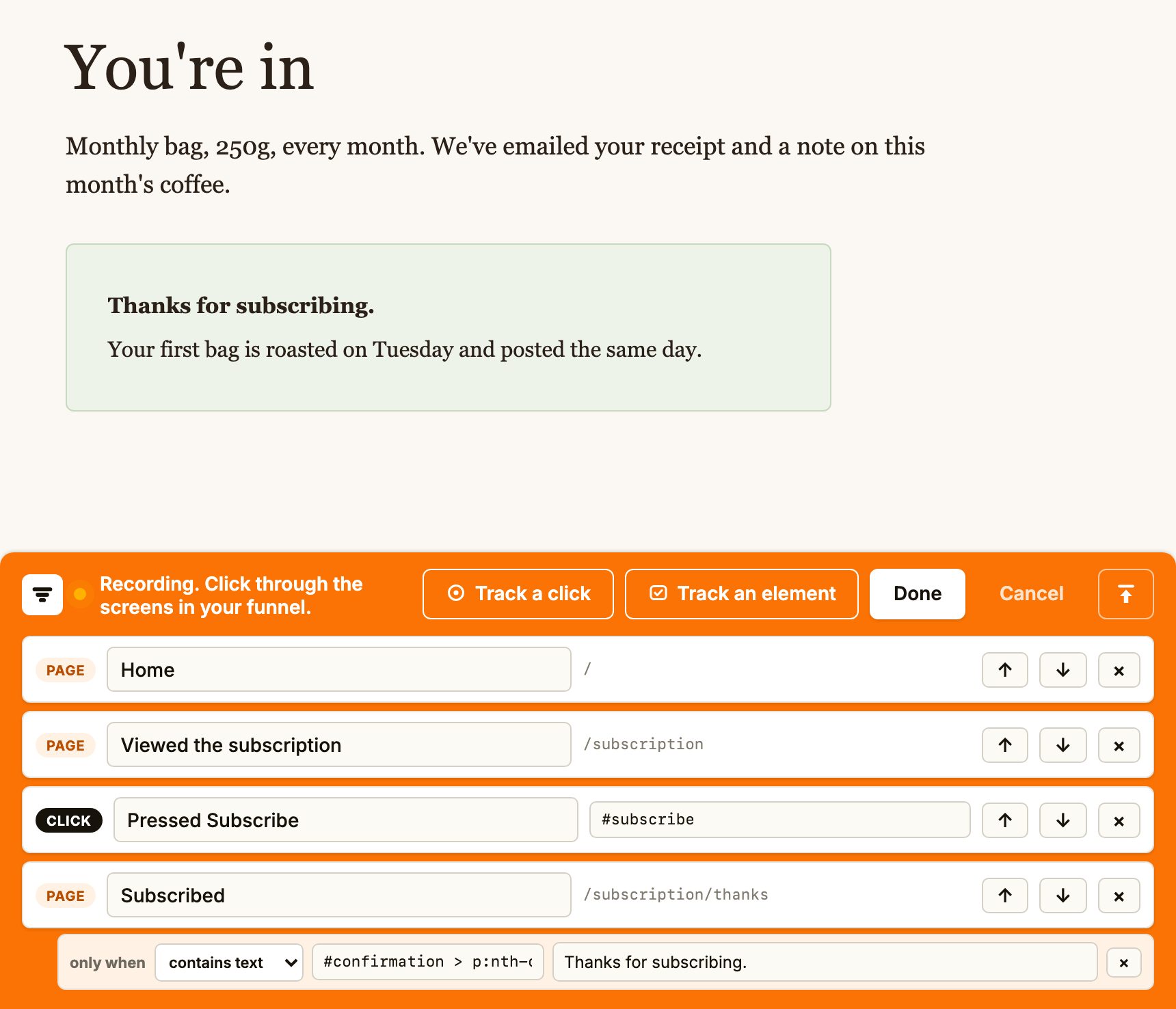
Your site opens in a new tab with a recorder bar along the bottom of the window, reading "Recording. Click through the screens in your funnel." The bar only appears in your tab, for this recording, and no visitor sees it. The button at its right end moves it to the top of the window if it covers something you need.
Walk your site
Go through your site the way a customer would. Every page you land on becomes a step, in the order you reached it, and appears in the bar's list. Each step starts with the page's own title. Give it a short name as you go, such as "Opened a coffee", since that name is what the Analytics page shows. Going back to a page you have already captured does not add it twice.
Use the arrows beside a step to move it up or down, and × to remove one. Nothing is saved until you press Done, so a wrong turn costs nothing.
Add clicks and checks
Some steps are a click rather than a page, such as a "Subscribe" button that opens a form without changing the address. Press Track a click, then click the button on your page. It becomes a step of its own, marked click. The box beside its name holds the short code the bar uses to find that button again; leave it as it is.
Some pages only count when something is on them, such as a "Thanks for subscribing" message. Press Track an element and click that thing. It does not become a new step: it is attached to the page you are on as a check. In the bar, choose whether it exists, does not exist or contains text. "Does not exist" is how you count a page only when an error message is missing from it.
Save
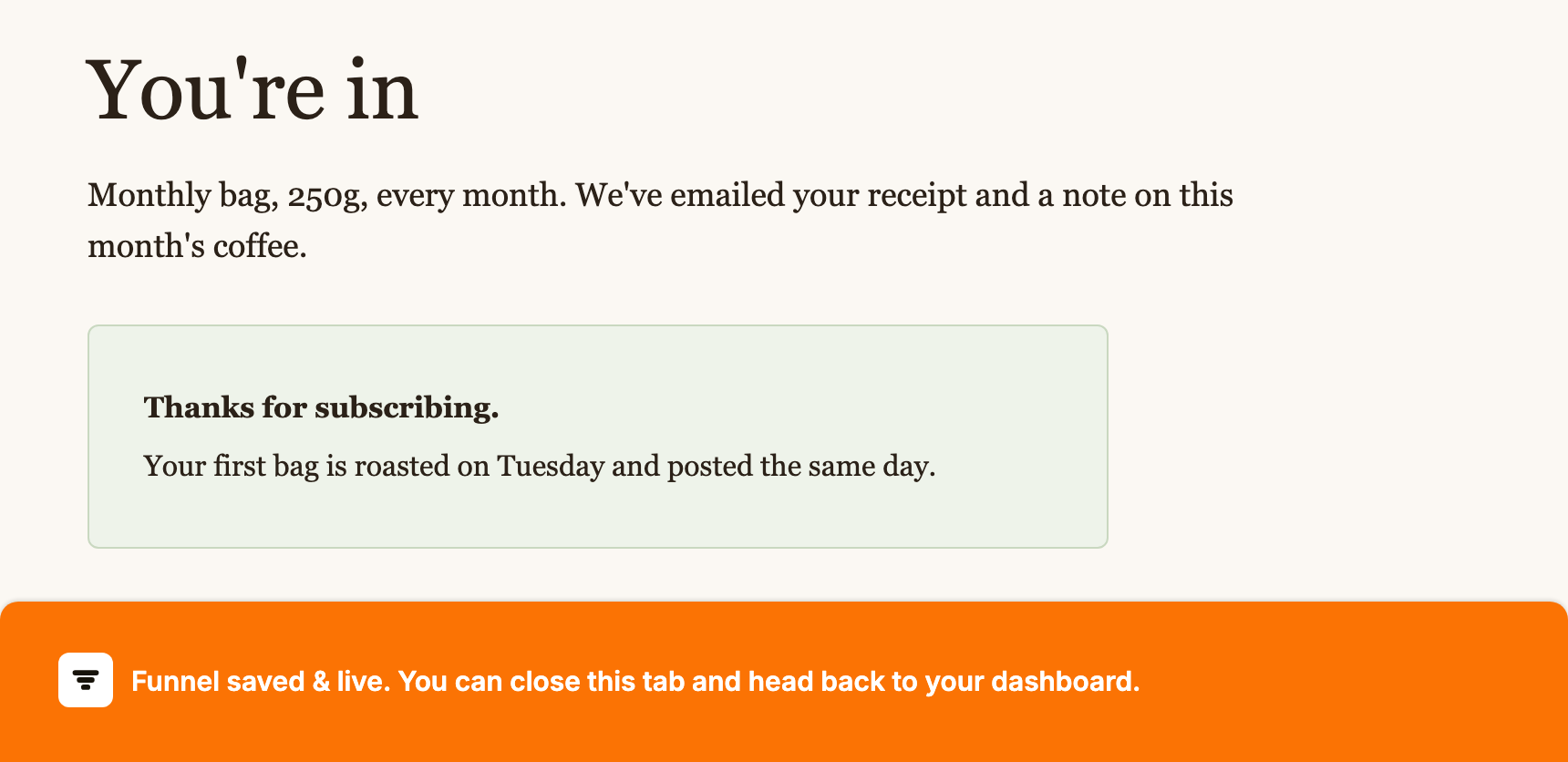
Press Done. The bar says "Funnel saved & live. You can close this tab and head back to your dashboard." Your steps are on the Analytics page and the funnel starts counting.
A second property is different: finishing its setup leaves it Ready. It counts visitors for 30 minutes so you can test it, then stops until you press Activate property in its Settings.
Recording replaces the steps the funnel had, keeping only the any page step at the top. Press Cancel instead to stop recording and throw away what you captured.
A recording lasts 30 minutes. If you leave it longer, a message tells you the link has expired when you next move between pages ("Mole Marketer: this setup link has expired. Start setup again from your dashboard."), and the steps you captured are not kept. Pressing Done after that cannot save them either: the message says the setup link has expired or was already used. Start again from Set up by recording.
Refine it in the step editor
Back on the Analytics page, every step can be changed in Funnel steps. Click a step's name to rename it, use the arrows to move it, or ✕ to remove it. Under each name, a menu chooses which of your domains the step counts on, or any domain.
+ when adds conditions to a step, so it only counts visitors who meet them. Choose a field (Entry referrer, UTM source and the other UTM tags, Country or Element), how it should match (is exactly or contains, or for an element exists, does not exist or contains text), type the value and press Add condition. With more than one condition, choose whether all or any of them must pass.
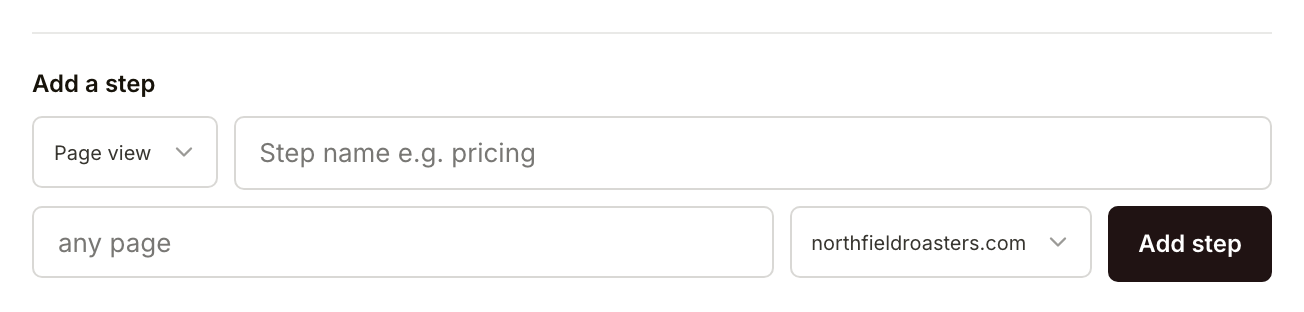
To add a step by hand, use Add a step under the list. Choose Page view, Click or Server event, give it a name, then the page it is on and the domain, and press Add step. A page view step added here counts every page whose address starts with what you type, so /coffee/ covers every coffee's own page. A click step also needs a short code that picks out the button on the page, which is why recording a click is easier.
A Server event step counts something your own systems report rather than a page, such as a renewed subscription. Whoever looks after your site sets that up with the server events reference. The first step of a funnel is always something a visitor did on your site, so it can never be a server event.
What happens next
With the steps in place, the Analytics page counts visitors through them. See read your Funnel Analytics.
Frequently asked questions
Will recording keep the steps I already have?
No. Saving a recording replaces every step except any page at the top. To change one step, edit it in Funnel steps instead of recording again.
How long does a recording last?
30 minutes from pressing Set up by recording. After that the link expires and the steps captured in it are lost, so start a new recording.
Can someone on my team record the funnel?
Owners and admins can. Members see the Analytics page but not the Funnel steps section.