



Tune the skills behind each marketing channel
Each marketing channel has four skills that shape its briefs, and three skills shape initiative pitches. How to adjust one for your business, or reset it.
On this page
The short version
 The short version
- Open Manage Marketing Channels, pick a marketing channel and open one of its skills.
- Edit the instructions. They save as you type and apply to every new run of that channel on this property.
- Press Reset to default to go back to the skill Mole Marketer ships.
A skill is the set of instructions one step of a run follows: how to define a marketing channel, what kind of ideas to look for, how to shape a brief, how to write a first draft. Mole Marketer ships a skill for every step of every channel, written for small teams. You can adjust any of them for your business. Priya added one line to Northfield Roasters' search engine optimisation (SEO) Draft skill, so every SEO brief names the coffee lot and its producer. It took a minute, and every new SEO brief on Northfield's property follows it.
Find the skills
In the sidebar under Marketing, choose Manage Marketing Channels. The Marketing channels page lists all 53 channels, with a search box and the channel types above them. Each card links straight to that channel's four skills: Spec, Ideas, Draft and Deliver.
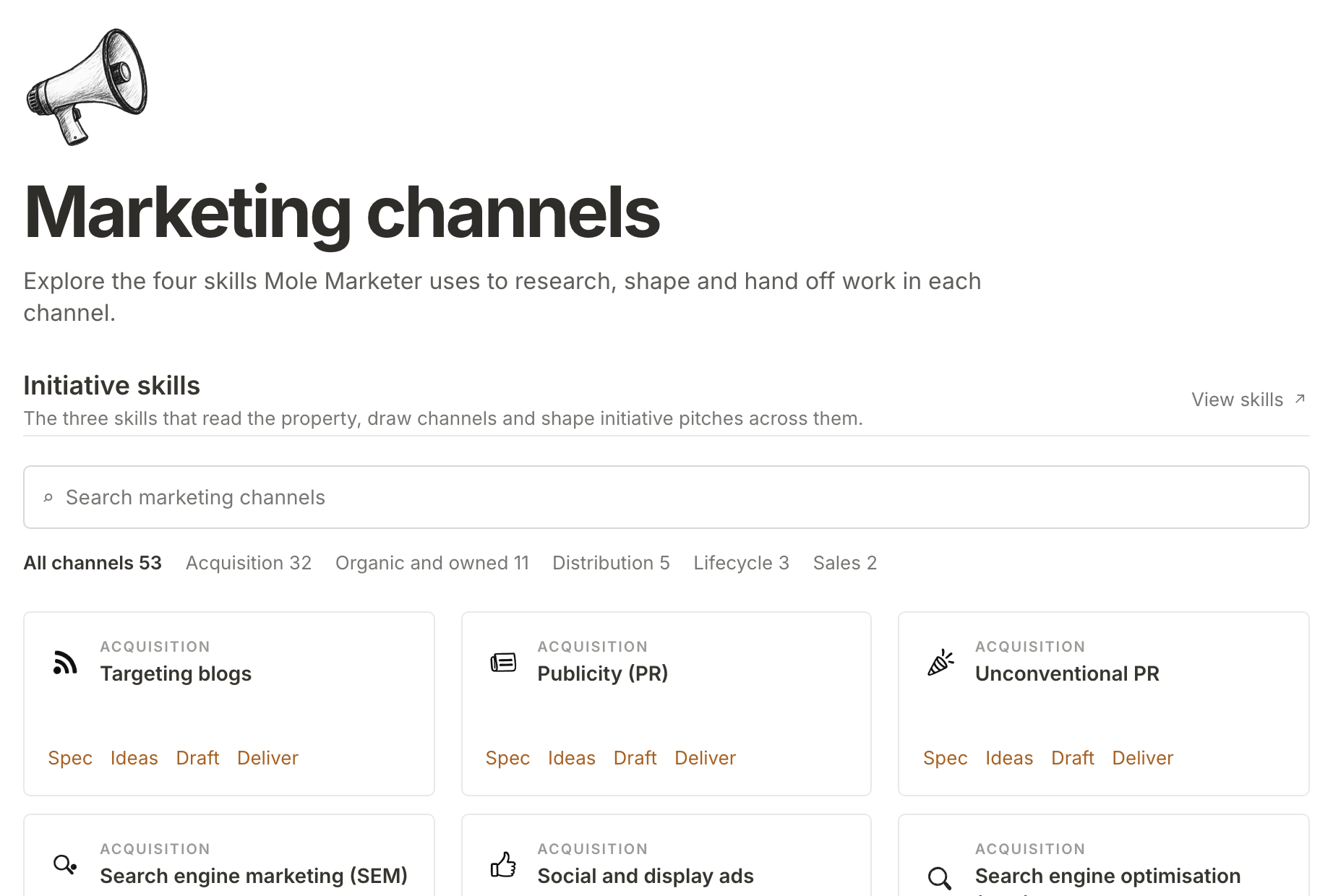
Initiative skills at the top of the page are different. They are The three skills that read the property, draw channels and shape initiative pitches across them, rather than skills for one channel. View skills opens them.
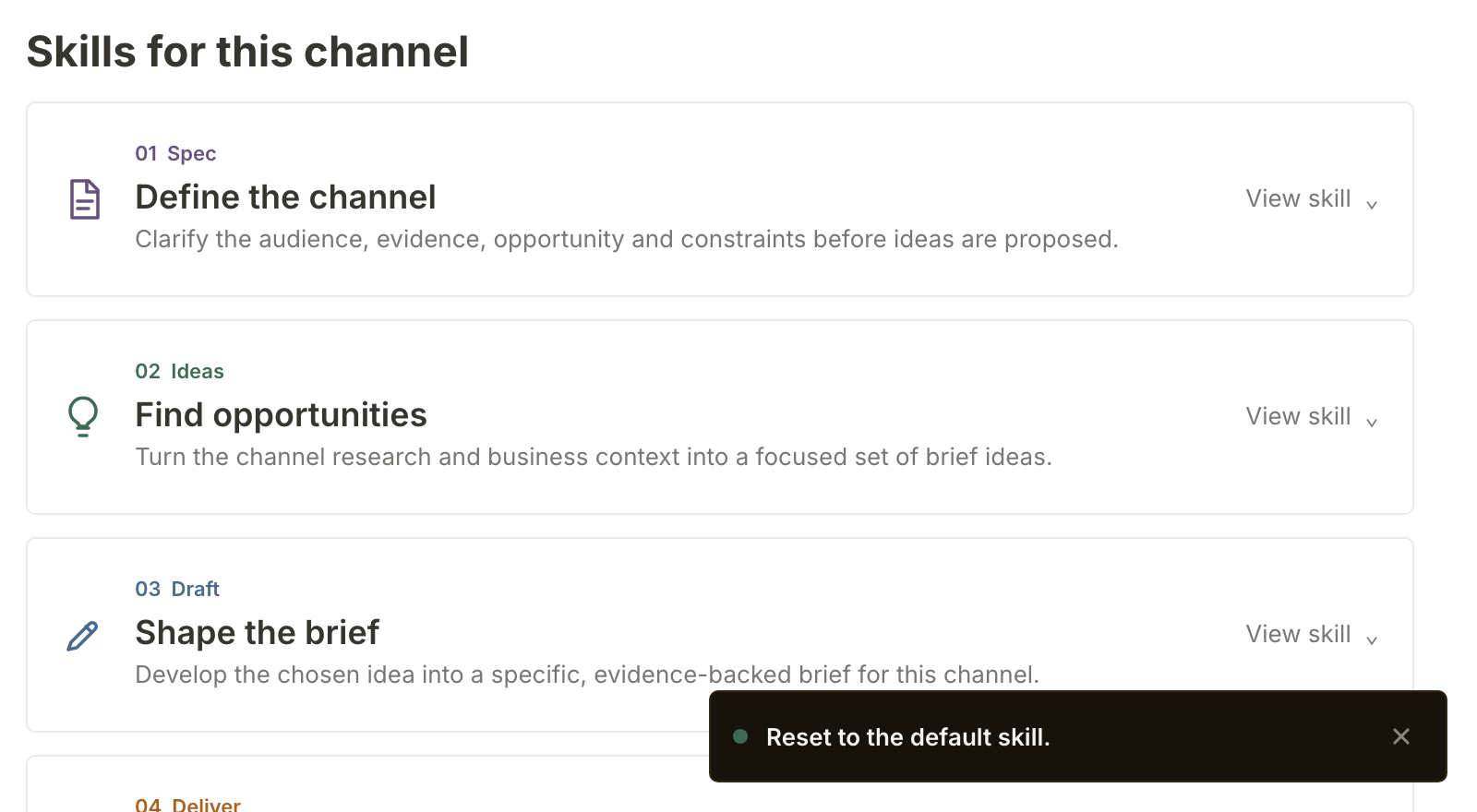
Open a channel to see Skills for this channel, one card per step:
- 01 Spec, Define the channel. Sets out the audience, evidence, opportunity and constraints before any ideas are proposed.
- 02 Ideas, Find opportunities. Turns the research and your business context into brief ideas for this channel.
- 03 Draft, Shape the brief. Develops the chosen idea into a brief. It is also what Update brief follows.
- 04 Deliver, Prepare the handoff. Writes the first draft when you generate one from a ready brief.
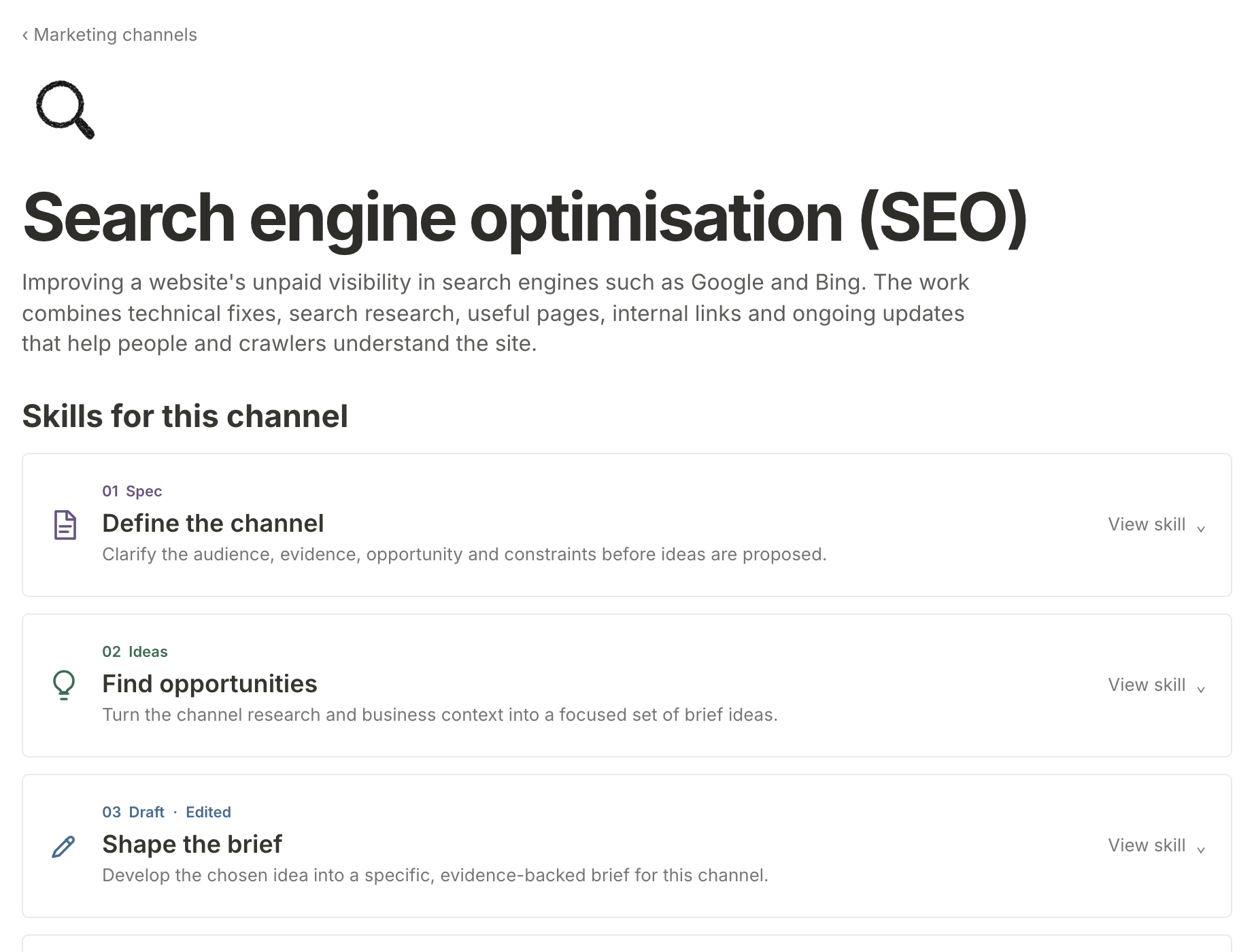
A card you have changed is marked Edited.
Edit a skill
Press View skill on a card to open it. Skill instructions says whose version runs: Default skill, or Edited for your property's name. The Skill prompt below it is the instructions themselves, in an editor with the usual bold, headings and lists.
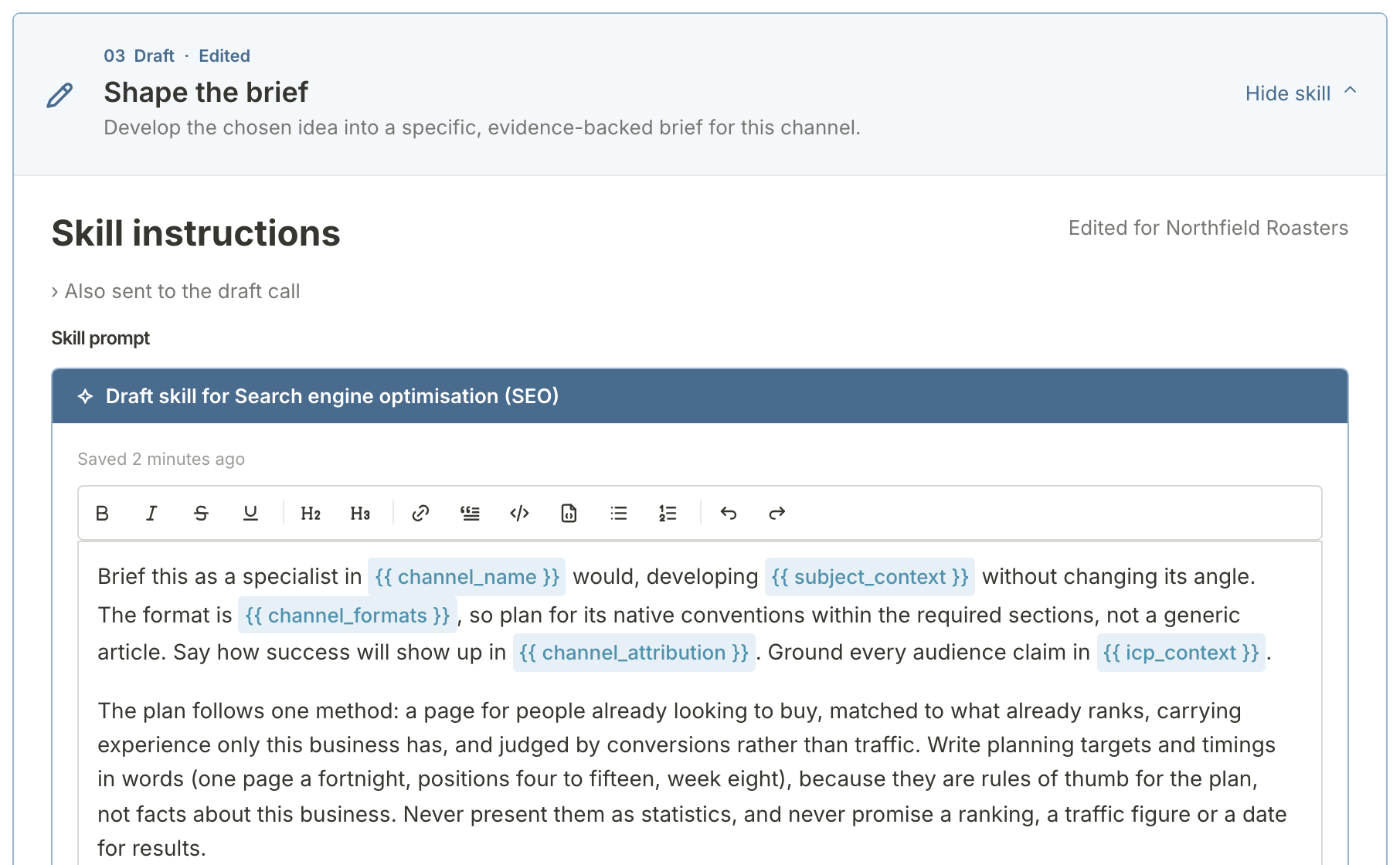
Write the way you would brief a new freelancer. Good edits are about your business: a fact to always include, a word your customers use, a kind of idea that never works for you. Priya's line is about Northfield's coffee, not about how to do SEO.
The editor saves as you type. The status above it reads Unsaved while you are typing and Saved a moment after you stop.
Your version applies to the new runs of that channel on this property, and only this property. The footer says so: "Every Search engine optimisation (SEO) brief on Northfield Roasters uses this version."
Use the placeholders
The words in coloured chips, such as {{ channel_name }} and {{ icp_context }}, are placeholders. Each one is filled in when the run reads the skill: with the channel's own details (its name, formats and how its results show up) or with your business details (your business profile, your ideal customer, the idea or brief being worked on).
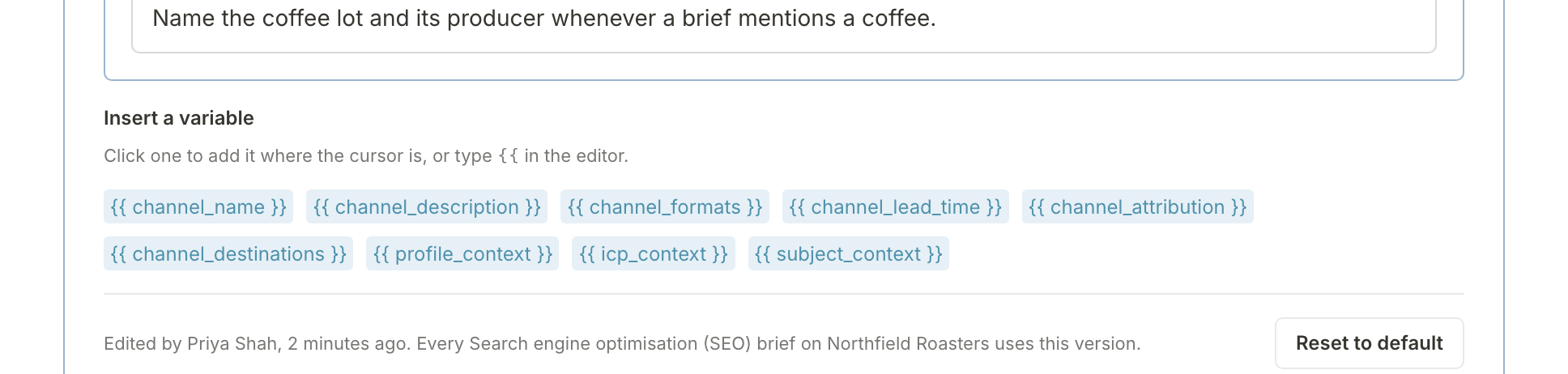
To add one, put the cursor where it should go and choose it under Insert a variable, or type {{ in the editor and pick from the list. Keep the placeholders the skill already uses. If an edit leaves a skill unable to run, for example by removing something it needs, the editor says Saved, but not running and lists what to fix. Until you fix it, runs keep using your last working version, or the default if there is none.
Reset it
At the foot of an edited skill, the footer says who edited it, by name (or by email address if they have not set a name), and when: for Northfield's SEO Draft skill, Edited by Priya Shah. Reset to default deletes your edits. You are asked to confirm first ("Your edits are deleted and new runs on Northfield Roasters use the default skill."), and then the page says Reset to the default skill.
If Mole Marketer improves a default skill after you edited it, your version keeps running and the skill tells you the default has been updated. Reset it to pick up the new default, then add your line back.
What happens next
Your edit shows up in the next run that uses it: the next brief pitches for that channel, the next Update brief, or the next first draft. To see a run step by step, read See how a pitch is researched and scored. To choose which AI models follow these skills, read Choose AI models and keep an eye on your allowance.
Frequently asked questions
Who can edit skills?
Anyone the property is shared with, members included. The footer of an edited skill names whoever edited it last.
Can a skill change how pitches are scored?
No. Scoring is a separate step with fixed questions and weights, and a skill never sees a score. A skill shapes what gets written; the scores decide which ideas go on.
What does Mole Marketer check whatever the skill says?
Every draft is still checked against a list of overused phrases, has its em dashes taken out, has any number that cannot be found in your sources removed, and may only cite your own sources. Those checks are not part of any skill, so an edit cannot switch them off.